Custom Software
Overview
The Custom Software page allows administrators to define custom backup software types and their associated file extensions. These custom software entries appear as options in the Folder Type dropdown when creating or mounting storage folders. This is useful when your backup software is not included in the default list.
To access Custom Software, click on CUSTOM SOFTWARE from the left navigation menu.
Custom Software Page — Add & List
The page shows the Add Software form at the top and the Custom Software List below, displaying all previously added custom software entries.
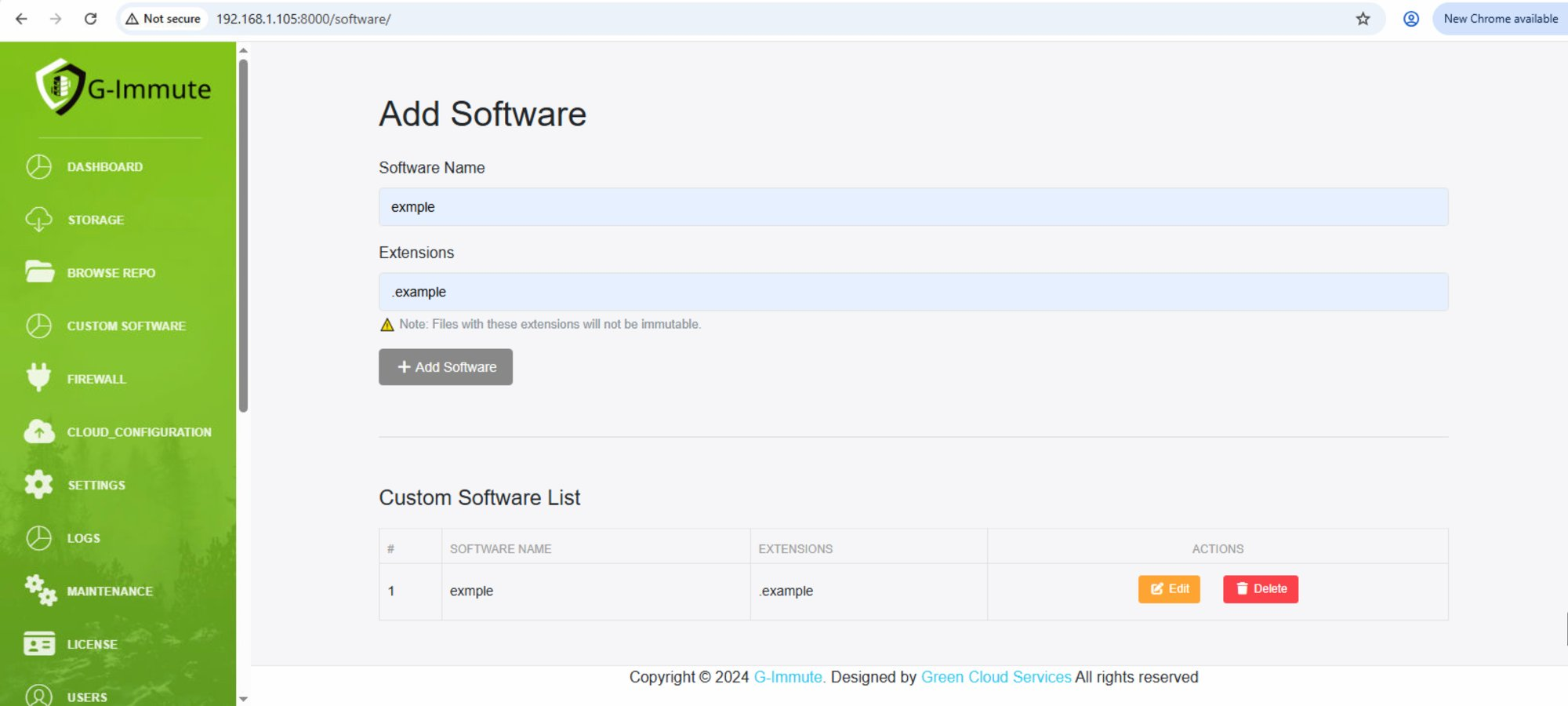
Figure 48 — Custom Software page — Add form and software list
| Element | Description |
|---|---|
| Add Software section | The form at the top of the page used to add a new custom software entry. |
| Software Name | Enter the name of the custom backup software. Example: exmple |
| Extensions | Enter the file extension(s) associated with this software. Example: .example |
| Warning note | "Files with these extensions will not be immutable." — custom extension files are excluded from immutability protection. |
| + Add Software button | Click to save the new software entry and add it to the Custom Software List. |
| Custom Software List | Table showing all custom software entries that have been added to the system. |
| # (Number) | Row number for each entry in the list. |
| SOFTWARE NAME | The name of the custom software. Example: exmple |
| EXTENSIONS | The file extensions associated with this software. Example: .example |
| Edit button (Orange) | Click to open an edit dialog where you can update the extensions. |
| Delete button (Red) | Click to permanently remove the custom software entry from the system. |
Custom software entries added here will appear as Folder Type options when creating folders in Browse Repo or mounting shares in Storage. Always ensure extensions are entered with a dot prefix (e.g. .example not example).
Editing Custom Software
To update an existing software entry, click the Edit button next to it in the list. An edit dialog opens allowing you to modify the software name and extensions. After saving, a confirmation popup appears.
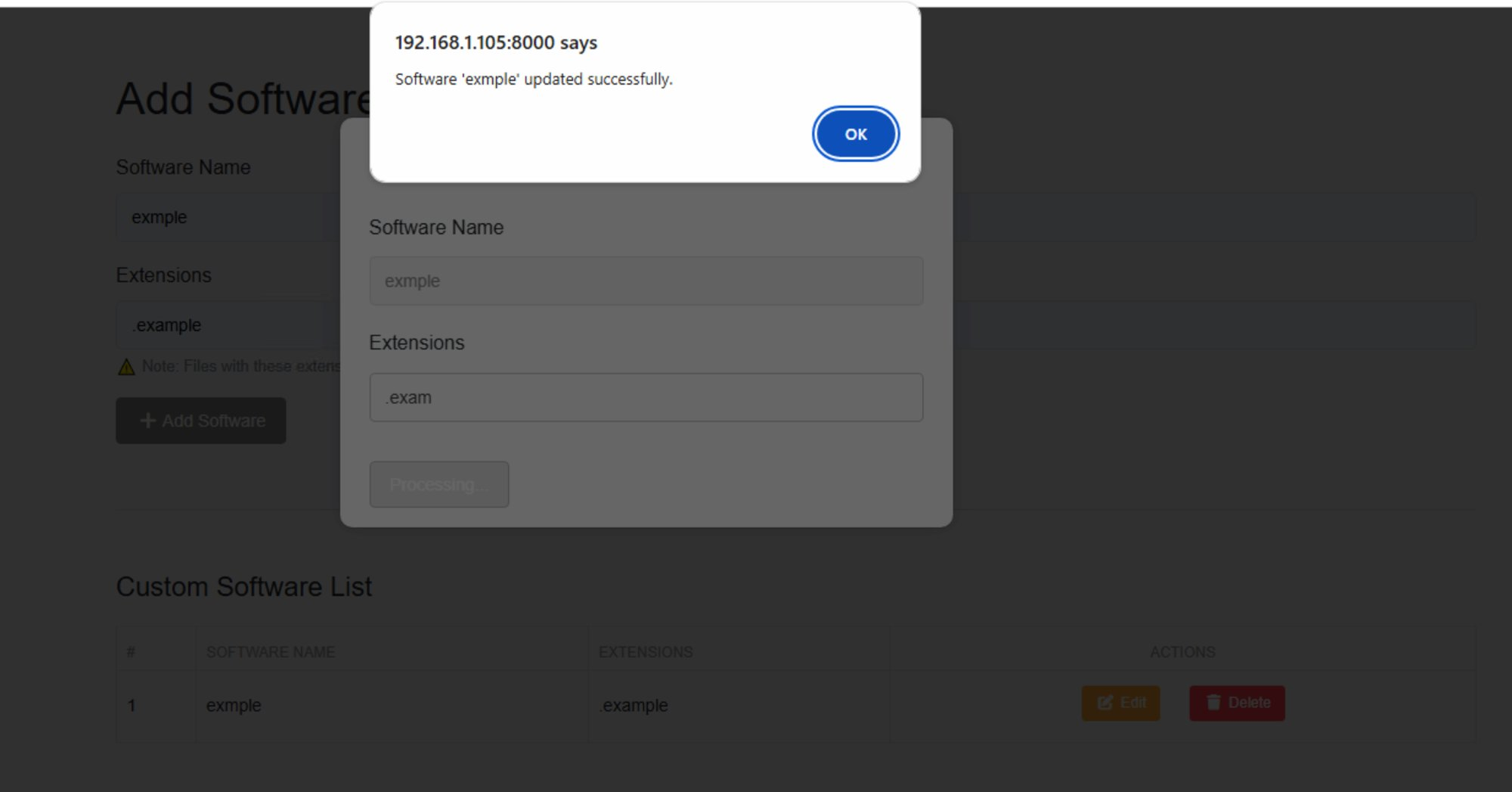
Figure 49 — Edit Custom Software dialog with update confirmation
| Element | Description |
|---|---|
| Edit dialog | Opens when the Edit button is clicked. Allows updating the software name and its associated extensions. |
| Software Name field | Update the name of the software if required. |
| Extensions field | Update the file extension(s) for this software. Example: .exam |
| Processing button | Click to save the updated software details. |
| Message shown | "Software 'exmple' updated successfully." — confirms the changes have been saved. |
| OK button | Click OK to dismiss the confirmation. The Custom Software List will reflect the updated details. |