Cloud Configuration
Overview
The Cloud Configuration page allows administrators to configure AWS S3 credentials used for cloud backup storage. Once configured, repository folders in Browse Repo can be synced to the S3 bucket by enabling the Cloud checkbox on that folder.
To access this page, click on CLOUD_CONFIGURATION from the left navigation menu.
AWS S3 Configuration
Enter your AWS S3 credentials in the form and click Processing to save. A confirmation popup appears once the credentials are saved successfully.
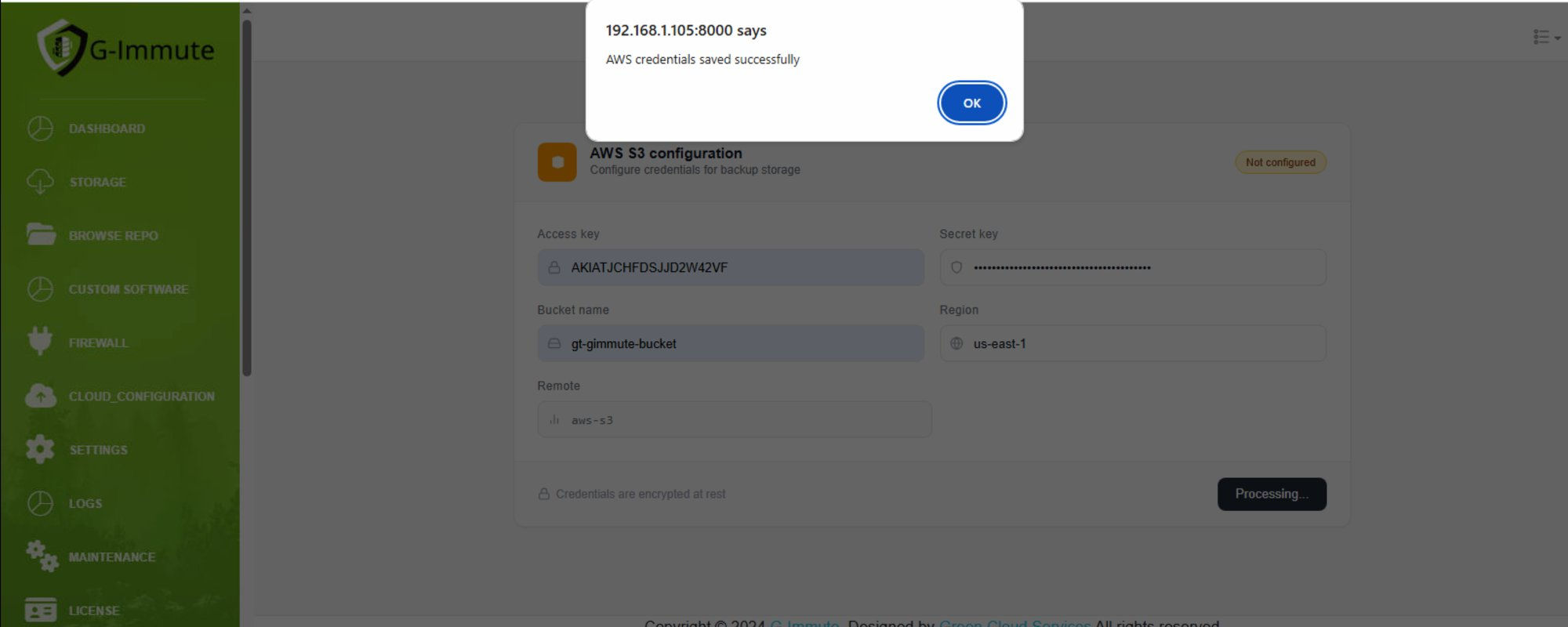
Figure 54 — Cloud Configuration — AWS S3 credentials form
| Element | Description |
|---|---|
| AWS S3 configuration | The configuration form for connecting G-Immute to an AWS S3 bucket for cloud backup storage. |
| Not configured (badge) | Shown in orange when no credentials have been saved yet. Changes to Configured once credentials are saved. |
| Access key | Your AWS IAM Access Key ID used to authenticate with AWS. Example: AKIATJCHFDSJJD2W42VF |
| Secret key | Your AWS IAM Secret Access Key (displayed masked for security). |
| Bucket name | The name of the AWS S3 bucket where backup data will be stored. Example: gt-gimmute-bucket |
| Region | The AWS region where your S3 bucket is located. Example: us-east-1 |
| Remote | The remote storage type identifier. Example: aws-s3 |
| Credentials are encrypted at rest | All credentials entered here are stored in encrypted form for security. |
| Processing button | Click to save and verify the AWS S3 credentials. |
| Message shown | "AWS credentials saved successfully" — confirms the S3 configuration has been saved and is ready to use. |
| OK button | Click OK to dismiss. Cloud sync is now available for repository folders in Browse Repo. |
note
After saving AWS credentials, go to Browse Repo and tick the CLOUD checkbox on any folder to start syncing its backup data to the configured S3 bucket.