General Settings
Overview
The General Settings page allows administrators to manage core system preferences and server configuration. From here you can update the server time zone, configure the secondary copy storage path, change the SSH port, and enable or disable SSH access to the server.
To access this page, click on SETTINGS from the left navigation menu, then select GENERAL SETTINGS.
Settings Page — All Options
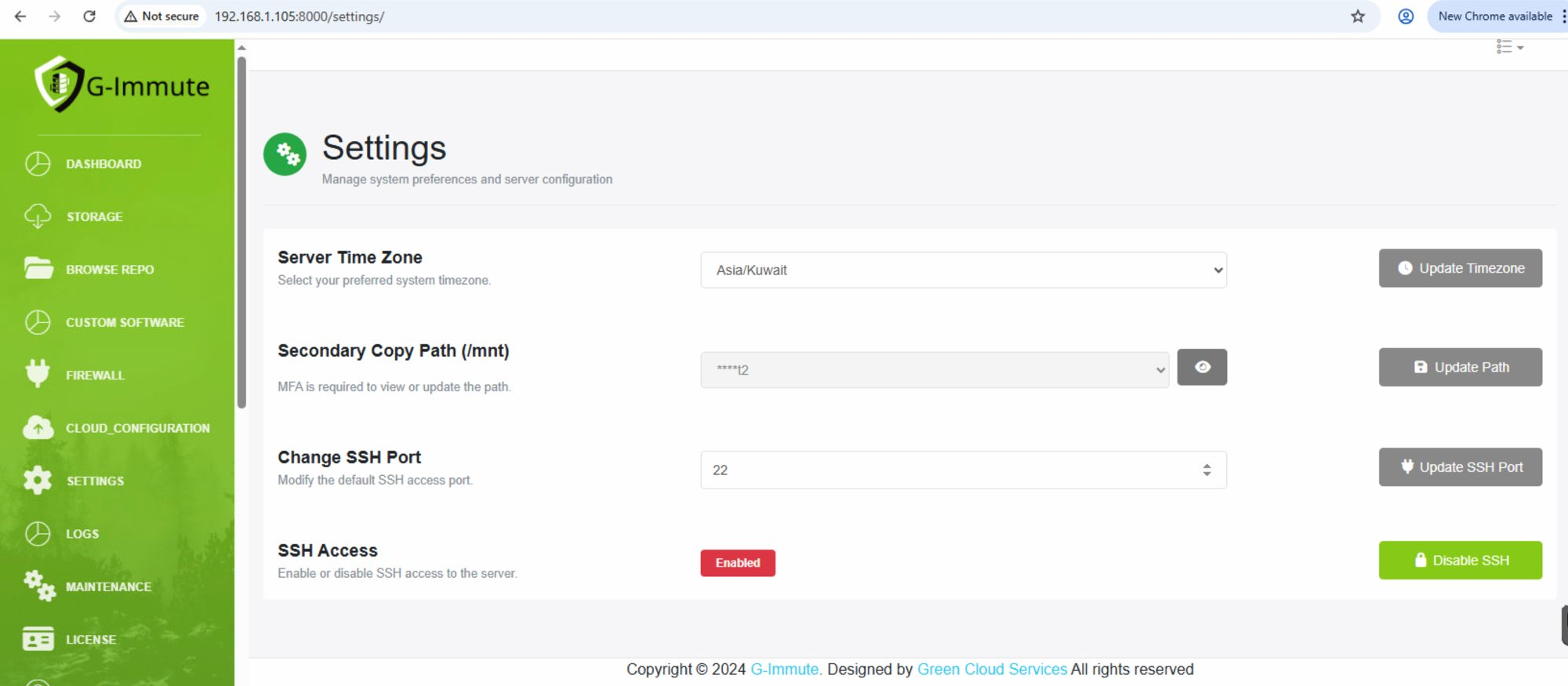
Figure 55 — Settings page showing all configuration options
| Element | Description |
|---|---|
| Server Time Zone | Select the system time zone for the G-Immute server. This affects timestamps on backups, logs, and scheduled jobs. Example: Asia/Kuwait |
| Update Timezone button | Click to save and apply the selected time zone immediately. |
| Secondary Copy Path (/mnt) | Displays the storage path used for secondary copy backups. The path is masked (shown as ****) for security. MFA verification is required to view or update this path. |
| Eye icon (View path) | Click to reveal the full secondary copy path. An MFA code dialog will appear before the path is shown. |
| Update Path button | Click to update the secondary copy storage path. MFA is required. |
| Change SSH Port | Modify the default SSH port used to access the server remotely. Default port is 22. Changing this can improve security. |
| Update SSH Port button | Click to save the new SSH port number. |
| SSH Access | Shows the current SSH access status. Enabled (red badge) means SSH is currently active. |
| Disable SSH button (Green) | Click to disable SSH access to the server. Button changes to Enable SSH when SSH is off. |
Viewing Secondary Copy Path — MFA Required
When you click the eye icon next to the Secondary Copy Path, an Enter MFA Code dialog appears. You must enter your current 6-digit OTP to verify your identity before the path is revealed.
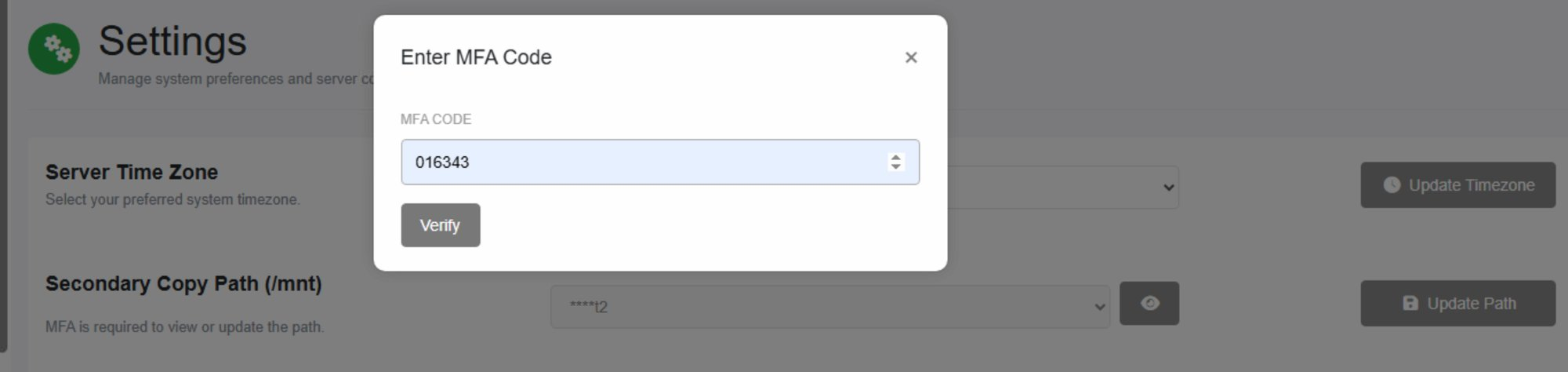
Figure 56 — Enter MFA Code dialog to view Secondary Copy Path
| Element | Description |
|---|---|
| Enter MFA Code dialog | Security dialog that appears when attempting to view or update the Secondary Copy Path. |
| MFA CODE field | Enter the current 6-digit OTP from your authenticator app. Example: 016343 |
| Verify button | Click to verify the MFA code. If correct, the full secondary copy path will be revealed. |
| X (Close) | Click to cancel without revealing the path. |
MFA is required to view or change the Secondary Copy Path to prevent unauthorized modification of backup storage locations. Ensure your authenticator app is available before attempting to update this setting.