Email Configuration
Overview
The Email Configuration section allows administrators to configure an SMTP email server for G-Immute system notifications. Once configured, G-Immute can automatically send alert emails — for example, when system storage is running low — ensuring administrators are notified promptly without needing to monitor the Dashboard manually.
To access this page, click on SETTINGS from the left navigation menu, then select EMAIL CONFIGURATION.
SMTP Configuration
The SMTP Configuration page is where you enter the outgoing mail server details. Fill in all fields and click + Save Configuration to store the settings. A ✓ Configured badge appears at the top right once successfully saved.
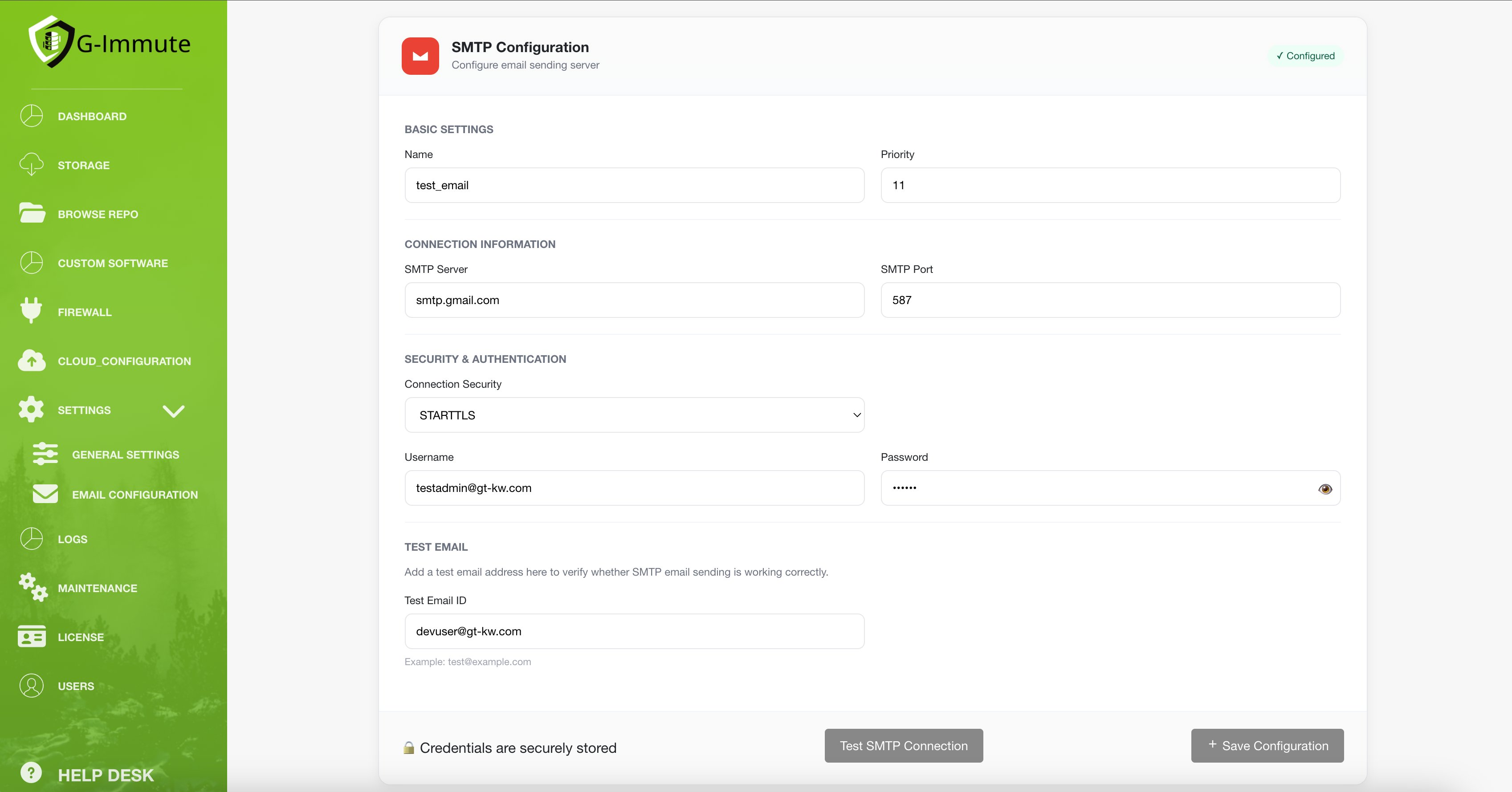
Figure 61 — SMTP Configuration form (Settings → Email Configuration)
Basic Settings
| Element | Description |
|---|---|
| Name | A label to identify this SMTP configuration. Example: test_email |
| Priority | Numeric priority for this mail server. Lower numbers are used first when multiple configurations exist. Example: 11 |
Connection Information
| Element | Description |
|---|---|
| SMTP Server | The hostname of the outgoing mail server. Example: smtp.gmail.com or smtp.office365.com |
| SMTP Port | The port number for the SMTP connection. Common values: 587 (STARTTLS), 465 (SSL/TLS), 25 (unencrypted). |
Security & Authentication
| Element | Description |
|---|---|
| Connection Security | Encryption method for the SMTP connection. Options: STARTTLS (recommended with port 587), SSL/TLS (for port 465), or None. |
| Username | The email address or username to authenticate with the SMTP server. Example: testadmin@gt-kw.com |
| Password | Password for the SMTP account. Entered securely and displayed as masked dots. All credentials are stored securely. |
Test Email
| Element | Description |
|---|---|
| Test Email ID | An email address to receive the SMTP test message. Example: devuser@gt-kw.com. Used for verification only — not saved as a permanent setting. |
| Test SMTP Connection button | Attempts a connection to the SMTP server and sends a test email to the address entered in the Test Email ID field. |
| + Save Configuration button | Permanently saves the SMTP configuration. The ✓ Configured badge appears at the top right once saved. |
| Credentials are securely stored | Confirms that SMTP credentials are encrypted and stored securely on the system. |
Configure SMTP settings and click Test SMTP Connection before saving. Only click + Save Configuration after receiving a successful test result.
Testing SMTP Connection
After filling in the SMTP form, click Test SMTP Connection to verify G-Immute can reach the mail server. The result is displayed at the bottom of the form immediately after the test completes.
SMTP Connection Failed — Authentication Error
If the SMTP credentials are incorrect or the server cannot be reached, G-Immute displays a red error message.

Figure 62 — SMTP connection failed error message
| Element | Description |
|---|---|
| SMTP connection failed | Shown in red — the connection attempt to the SMTP server was unsuccessful. |
| Authentication failed. Username or password is incorrect. | Indicates the SMTP server rejected the supplied credentials. Verify the username and password and try again. |
Common Causes & Fixes
| Issue | Likely Cause | Fix |
|---|---|---|
| Authentication failed | Wrong username or password | Verify credentials. For Gmail, use an App Password instead of your regular account password. |
| Connection timed out | Wrong SMTP server or port | Confirm the SMTP server hostname and port number are correct for your mail provider. |
| SSL/TLS error | Mismatched security setting | Match Connection Security to the port: STARTTLS → port 587, SSL/TLS → port 465. |
SMTP Connection Successful
When the SMTP server accepts the connection and the test email is sent, G-Immute displays a green confirmation message.

Figure 63 — SMTP connection successful and test email sent
| Element | Description |
|---|---|
| SMTP port is reachable | Shown in green — G-Immute successfully connected to the SMTP server on the configured port. |
| Test email sent successfully to [address] | Confirms a test email was delivered to the address in the Test Email ID field. Check that inbox to verify receipt. |
After a successful test, click + Save Configuration to store the settings permanently. The ✓ Configured badge will appear at the top right of the page once saved.
Test Email — Inbox Confirmation
When a test email is sent successfully, the recipient receives a formatted confirmation email from G-Immute confirming the SMTP configuration is working correctly.
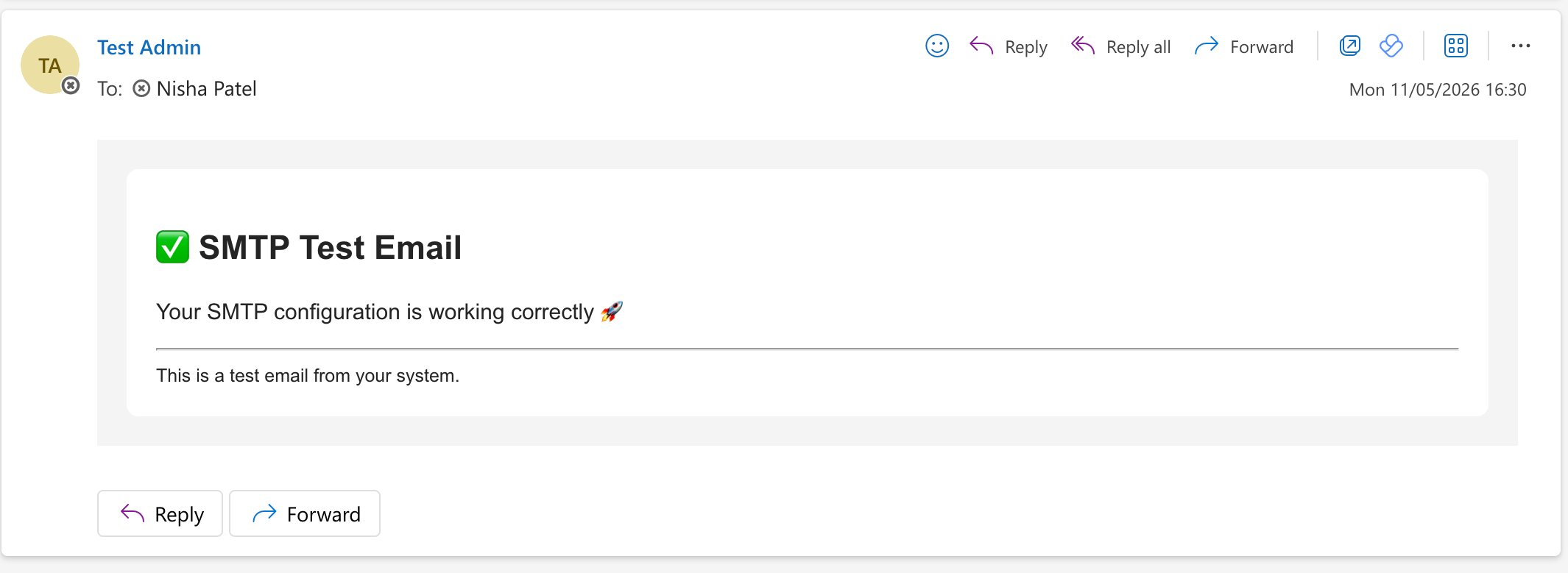
Figure 64 — Test email received in the recipient's inbox
| Element | Description |
|---|---|
| Subject: SMTP Test Email | The subject line used for all G-Immute SMTP test messages. Easily identifiable in the inbox. |
| Body: Your SMTP configuration is working correctly | Confirms the SMTP setup is functional and system notification emails will be delivered successfully. |
| This is a test email from your system. | The body footer line confirming the origin of the message — sent automatically by G-Immute. |
When G-Immute Sends Email Notifications
Once SMTP is configured and saved, G-Immute automatically sends email notifications when important system events occur.
| Trigger | Description |
|---|---|
| Storage Running Low | An alert email is sent when system storage usage approaches capacity (80% or above), giving administrators time to free up space before backup jobs fail. |
| Storage Full | An urgent notification is sent when storage reaches 100% capacity. Backup jobs may begin to fail at this point. |
| Other System Events | Critical system warnings may also trigger email notifications depending on the G-Immute system configuration. |
Ensure the SMTP configuration is saved and verified before storage fills up. Without a working SMTP configuration, G-Immute cannot send storage alert notifications and administrators may be unaware of capacity issues until backup jobs begin to fail. It is recommended to re-test the connection after any changes to mail server credentials.